This guide shows you how to create a SharePoint 2013 Search Service Application using PowerShell and how this process differs from creating a SharePoint 2010 Search Service Application using PowerShell.

Please note this is work in progress. This post is part of SharePoint 2013 resource page.

Search Service Application

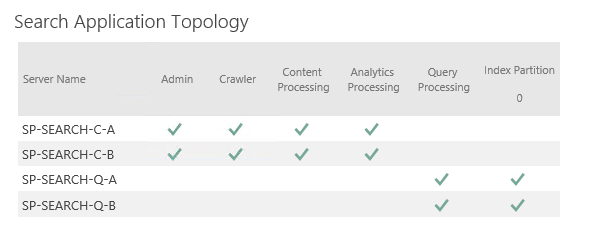
SharePoint 2013 Search Service Application created with PowerShell.

PowerShell to create Search

Here are the steps I used to create a new Search Service Application in SharePoint 2013 using PowerShell:

  1. Create a new Service Application:
    $ServiceApplication = New-SPEnterpriseSearchServiceApplication 
    -Name "Search SA"
    -ApplicationPool $spAppPoolName
    -DatabaseServer "SERVERNAME"
    -DatabaseName "Database Name"
  2. Create a new Service Application Proxy:
    New-SPEnterpriseSearchServiceApplicationProxy 
    -Name "Search SA Proxy" -SearchApplication "Search SA"
    Note: The name of the search service application is sufficient for the parameter 'SearchApplication' but might change.

  3. Get the Search Instance. The instance is used to associate new Search Components (crawl, query, admin…) create later with the instance itself: 
    $searchInstance = Get-SPEnterpriseSearchServiceInstance -local 
    
  4. Get the active Search Topology. This is used to monitor the state of the old search topology which becomes inactive if the new one gets active:
    $InitialSearchTopology = $ServiceApplication | Get-SPEnterpriseSearchTopology 
    -Active
    Note: In SharePoint 2010 Get-SPEnterpriseSearchCrawlTopology was used instead.
  5. Create a new Search Topology. New Search Components  (crawl, query, admin…) have to be associated with a search instance and a search topology.
     $SearchTopology = $ServiceApplication | New-SPEnterpriseSearchTopology 
    
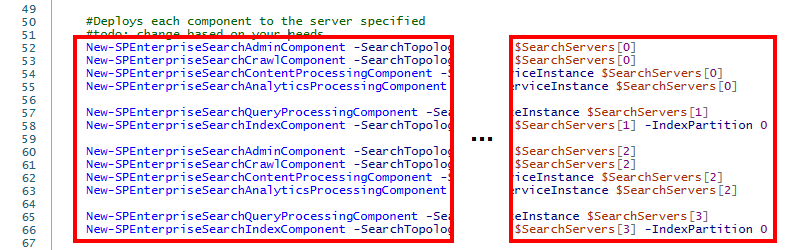
  6. Create Administration Component and Processing Components. Here you need the search instance and new search topology from above:
    New-SPEnterpriseSearchAdminComponent 
    -SearchTopology $SearchTopology -SearchServiceInstance $searchInstance
    New-SPEnterpriseSearchAnalyticsProcessingComponent
    -SearchTopology $SearchTopology -SearchServiceInstance $searchInstance
    New-SPEnterpriseSearchContentProcessingComponent
    -SearchTopology $SearchTopology -SearchServiceInstance $searchInstance
    New-SPEnterpriseSearchQueryProcessingComponent
    -SearchTopology $SearchTopology -SearchServiceInstance $searchInstance
    Note: Looks like the following statement doesn't work to create a search admin component:
    $ssa | get-SPEnterpriseSearchAdministrationComponent | set-SPEnterpriseSearchAdministrationComponent -SearchServiceInstance $searchInstance
    $ssa | Get-SPEnterpriseSearchAdministrationComponent
  7. Create a new Crawl Component:
    New-SPEnterpriseSearchCrawlComponent 
    -SearchTopology $SearchTopology -SearchServiceInstance $searchInstance
  8. Create a new Index (Query) Component:
    New-SPEnterpriseSearchIndexComponent -SearchTopology $SearchTopology 
    -SearchServiceInstance $searchInstance -RootDirectory $IndexLocation
    Note:
    • In SharePoint 2010 the PowerShell cmdlet was New-SPEnterpriseSearchQueryComponent.
    • The ‘RootDirectory’ property requires and existing AND empty folder like "C:\Program Files\Microsoft Office Servers\15.0\Data\Office Server\Applications\Index". If not existing OR not empty it fails.
  9. Activated the new Search Topology and deactivate the old one:
    $SearchTopology | Set-SPEnterpriseSearchTopology 
    
    Note:
    • I encountered that activating the topology requires all components created first, otherwise you get an error e.g. 'Set-SPEnterpriseSearchTopology : At least one index partition does not contain any components.'
    • In SharePoint 2010 the cmdlet was Set-SPEnterpriseSearchQueryTopology.
    • The old topology wasn't set to inactive for 15 minutes although TechNet says: "This cmdlet enables the search topology with the given identity, marking the currently active search topology as inactive." So maybe I didn't allocated enough system resources (especially I was short of RAM) or it takes more time.
  10. Remove the old Search Topology:
    do { Write-Host -NoNewline .;Start-Sleep 6;} 
    while ($InitialSearchTopology.State -ne "Inactive") $InitialSearchTopology | Remove-SPEnterpriseSearchTopology -Confirm:$false
    Note: This needs more investigation as written one step above. Btw: I got this statement from Todd Klindt as well as an adapted one from Spencer Harbar.
  11. Get the finished PowerShell script that is part of my book if you don't want to do it manually.

Please leave a comment if you have some tips.

Resources


Get FREE & Advanced SharePoint Training, how-to's, tips & tricks:
Learn SharePoint

Comments (4) -

8/15/2012 10:56:01 PM #

Brian Pendergrass

Hi Andreas,

Thanks for your help getting started on this. I understand these were created on an earlier build, so things change with each build. Being said, I just wanted to pass along some changes I noticed going through this process using the recent Beta2 release.

------------
When creating my Service Application Proxy, I had to specify "-SearchApplication $SSA" rather than just the name for the SSA. For example:

$SSA | Get-SPEnterpriseSearchServiceApplication "mySSA"
New-SPEnterpriseSearchServiceApplicationProxy -name $ssaConfig.ssaName -SearchApplication $SSA

---- To start the Search Admin Component ---
New-SPEnterpriseSearchAdminComponent -SearchTopology $newTopo -SearchServiceInstance $targetSearchInstance

$SSA | Get-SPEnterpriseSearchAdministrationComponent | Set-SPEnterpriseSearchAdministrationComponent -SearchServiceInstance $targetSearchInstance

$SSA | Get-SPEnterpriseSearchAdministrationComponent
-------------
When creating new index components, I was provisioning on multiple servers. For the -RootDirectory parameter, similar to you, I found that it would only work when the specified path existed on both the server you ran the command from (even if you are not provisioning an index partition on *this* server) as well as any target servers to which the index component is being added. In other words, if I run the PowerShell from server-A to provision an index component on server-B, then the RootDirectory path must exist on both server-A and server-B (even though I'm not trying to create an index partition on server-A).

Thanks again for your help - I've used your base line to create a generic script to provision search across multiple servers in a farm and will be posting it on my blog soon.

--Brian Pendergrass

Brian Pendergrass United States Reply

8/19/2012 12:44:51 PM #

Andreas Glaser

Hey Brian,

thank you very much Smile

Andreas

Andreas Glaser Switzerland Reply

8/25/2012 5:58:00 AM #

Brian Pendergrass

If interested, I just posted a script I wrote that deploys the SSA across multiple servers.  

Brian Pendergrass United States Reply

4/21/2013 11:11:50 PM #

Jason Walters

I also ran into the issue with the root directory param across multiple servers. My instinct was to just use a UNC path like \\serverA\drive letter\folder. This works as expected. I do not exactly like it but since the Index component on each server is only calling that directory locally I don't foresee any issues.

Jason Walters Reply

Add comment


Loading